Project Image
Project Details

Free DIY Furniture Plans to Build an Original Office Collection Three Drawer Cabinet! The components in this collection can be mixed and matched. To see the other pieces we have published so far, click here or select Original Office Collection from the drop down menu on the plans page. Don't forget, you can also request plans by posting a link and or an image here. Don't be shy, we welcome your requests, questions and even cool building tricks you have learned. Join the community and chat it up! 

The length of the top will be cut separately, and depends on the number of components used with at least 24” for leg room if using as a desk. **

Estimated Cost

$25-$50

Dimensions
Dimensions for This Project
Tools
  • Tape Measure
  • Saw – Jig, Circular, or Miter
  • Drill
  • Brad nailer
  • Square
  • Sander
  • Kreg Jig 
Lumber
  • 1 sheet of ¾” plywood
Materials
  • 1-1/4” pocket hole screws
  • 1-1/4” brad nails
  • Edge banding for plywood
  • 3 sets of 18” drawer slides
  • Wood filler
  • Sandpaper
  • Wood glue
  • Finishing Supplies
Cut List
  • 2 – ¾” plywood at 20” x 27-1/4” – Sides
  • 3 – ¾” plywood at 1-1/2” x 16-1/8” – Upper Stretchers
  • 2 – ¾” plywood at 2-1/2”x 16-1/8” – Lower Stretchers
  • 1 – ¾” plywood at 16-1/8” x 20” – Bottom
  • 1 – ¾” plywood at 16-1/8” x 24” – Back
  • 1 – ¾” plywood at 17-5/8” x 20-3/4” – Top
  • 1 – ¾” plywood at 2-1/2” x 17-5/8” - Trim
  • 3 – ¾” plywood at 13-3/8” x 17-1/4” – Drawer Bottom
  • 2 – ¾”plywood at 4-9/16” x 17-1/4” – Small Drawer Sides
  • 1 – ¾” plywood at 4-9/16” x 14-7/8” – Small Drawer Back
  • 1 – ¾” plywood at 5-9/16” x 16-5/8” – Small Drawer Front
  • 2 – ¾” plywood at 10-3/8” x 17-1/4” – Large Drawer Sides
  • 1 – ¾” plywood at 10-3/8” x 14-7/8” – Large Drawer Back
  • 1 – ¾”plywood at 11-3/8” x 16-5/8” – Large Drawer Front
Instructions

Before beginning to build, always check in on my site to make sure you have the most up to date set of plans, I occasionally update and change the plans to make the building process easier or to allow for less expensive purchasing of materials! Read through the entire set of instructions and all comments before beginning this project. If you print out or save plans, be sure to check in on my site to be sure you have the most up to date set of plans, as I occasionally update things for ease of building or buying. If you are new to building, read through the GETTING STARTED section and other articles found under the BUILD tab in the menu on my site, it has valuable information about how to get started, tools and techniques. If you are unfamiliar with the finishing process, visit my Finishing school for some tips and tricks for painting like a pro and for special finishing practices. Use glue to secure your joints and Consider Painting or Staining individual sections prior to assembling. This makes the paint application virtually flawless. Coat with a spray on Poly or Wipe on Poly to protect your finish and your piece and it will last for ages. Adhere to all safety standards and guidelines, and be sure you follow safety protocol throughout your build. If you are unsure about whether you are building safely, run a quick online search for the tool or technique you are using, or contact me via email or post to the forum before you move ahead. My contact info can be found in the menu of my site.

Step 1

Edge banding will be applied to the exposed edges of the plywood before assembly.

Cut the pieces for the sides and the lower stretchers. Set the Kreg jig for ¾” material and drill pocket holes in each end of the stretcher pieces, as well as the top edge of the sides. Assemble as shown using glue and 1-1/4” pocket hole screws.

Step 1
Step 2

Cut the piece for the bottom and position as shown. Secure to the stretchers using glue and 1-1/4” brad nails.

Step 2
Step 3

Cut the piece for the back and drill pocket holes in all four edges. Position as shown and secure using glue and 1-1/4” pocket hole screws.

Step 3
Step 4

Cut the pieces for the upper stretchers and drill pocket holes in each end. Position as shown and secure using glue and 1-1/4” pocket hole screws.

Step 4
Step 5

Cut the piece for the top. The front will overlap by ¾”. Secure using glue and 1-1/4” pocket hole screws through the holes drilled in the back and side pieces.

Step 5
Step 6

Cut the piece for the trim. Secure in place using glue and 1-1/4” brad nails.

Step 6
Step 7

Cut the pieces for the drawers. Drill pocket holes in each end of the side pieces as well as all four edges of the bottom. Assemble as shown using glue and 1-1/4" pocket hole screws. The fronts will overlap the drawer opening by 3/8” on the sides, and ¼” at the top and bottom.

Install the drawer slides according to the manufacturer's instructions. For an easy tutorial, click here. Make any necessary adjustments. 

Step 7
Step 7
Step 7
Step 7
Step 7
Finishing Instructions

Fill any Screw, Nail or Pocket Holes, Sand and Finish as Desired. For Finishing Tips and Tricks visit my Finishing School

Disclaimer

**Disclaimer: Some rights reserved. Private use only. Feel Free to link to any of my plans so long as you provide an adequate link back to the appropriate post! Plans from this page are not to be used for commercial purposes or republished without the express written consent of Rayan Turner, The Design Confidential I hope to provide accurate plans, however, I cannot guarantee each plan for accuracy. Not every plan that I post has been built and tested, so you are building at your own risk. It is recommended that you have a clear understanding of how the project works before beginning any project. Please contact me if you find an error or inaccuracy so that I might fix it.

Project Image
Project Details

Free DIY Furniture Plans to Build a Piemonte 3-Drawer Dresser. I love the versatility this pieces has! I would use something like this as an end table, in an entry way, as an occasional table, it really might go anywhere... Xx... Rayan

Estimated Cost

$50-$75

Dimensions
Dimensions for This Project
Tools
  • Tape Measure
  • Saw – Jig, Circular, or Miter
  • Drill
  • Square
  • Sander
  • Kreg Jig
  • Brad Nailer
Lumber
  • 2 – 1x4 at 8’
  • 1 sheet of ¾” plywood
  • 1 – 4” wide trim at 8’
  • 2 – 1” wide trim at 8’
Materials
  • 1-1/4” pocket hole screws
  • 1-1/4” brad nails
  • Edge banding
  • 3 cabinet pulls
  • Wood filler
  • Sandpaper
  • Wood glue
  • Finishing Supplies
Cut List
  •  2 – ¾” plywood at 13” x 29” – Sides
  • 1 – ¾” plywood at 19-1/2” x 24-3/4” – Back
  • 4 – ¾” plywood at 12-1/4” x 19-1/2” – Shelves
  • 1 – ¾” plywood at 13-1/2” x 22” – Top
  • 3 – ¾” plywood at 10-1/2” x 17” – Drawer Bottoms
  • 6 – 1x4 at 10-1/2” – Drawer Sides
  • 6 – 1x4 at 18-1/2” – Drawer Fronts & Backs
  • 3 – ¾” plywood at 5-1/8” x 19-1/4” – Drawer Fronts
  • Drawer Trim – Cut to fit
  • Lower Trim – Cut to fit


Instructions

Before beginning to build, always check in on my site to make sure you have the most up to date set of plans, I occasionally update and change the plans to make the building process easier or to allow for less expensive purchasing of materials! Read through the entire set of instructions and all comments before beginning this project. If you print out or save plans, be sure to check in on my site to be sure you have the most up to date set of plans, as I occasionally update things for ease of building or buying. If you are new to building, read through the GETTING STARTED section and other articles found under the BUILD tab in the menu on my site, it has valuable information about how to get started, tools and techniques. If you are unfamiliar with the finishing process, visit my Finishing school for some tips and tricks for painting like a pro and for special finishing practices. Use glue to secure your joints and Consider Painting or Staining individual sections prior to assembling. This makes the paint application virtually flawless. Coat with a spray on Poly or Wipe on Poly to protect your finish and your piece and it will last for ages. Adhere to all safety standards and guidelines, and be sure you follow safety protocol throughout your build. If you are unsure about whether you are building safely, run a quick online search for the tool or technique you are using, or contact me via email or post to the forum before you move ahead. My contact info can be found in the menu of my site.

Step 1

Edge banding will be applied to the exposed edges of the plywood before assembly.

Cut the pieces for the sides. Set the Kreg jig for ¾” material and drill pocket holes in the top edge.

Cut the piece for the back and drill pocket holes in the sides and top. Secure the back to the sides as shown using glue and 1-1/4” pocket hole screws.

Step 1
Step 2

Cut the pieces for the shelves and drill pocket holes in each end as well as the back edge. Secure to the sides and back as shown using glue and 1-1/4” pocket hole screws.

Step 2
Step 3

Cut the piece for the top. Position the top so that ½” overhangs each side and the front, then secure with 1-1/4” pocket hole screws through the sides and back into the underside of the top.

Step 3
Step 4

Cut the pieces for the drawers. Drill pocket holes in each end of the side pieces as well as all four edges of the bottom. Assemble the drawer as shown using glue and 1-1/4” pocket hole screws. Cut the pieces for the drawer fronts and mark the position of the pulls. Drill the holes for the pulls all the way through the boards. For an easy tutorial on positioning drawer fronts, click here.

Step 4
Step 4
Step 4
Step 5

Cut the pieces for the drawer trim. The dimensions will depend on the type of trim selected and if mitered corners will be used. Measure the lengths and cut the pieces accordingly. Fasten to each of the drawer fronts using glue and 1-1/4” brad nails.

The pieces for the lower trim will be measured and attached in the same manner.

Step 5
Step 5
Finishing Instructions

Fill any Screw, Nail or Pocket Holes, Sand and Finish as Desired. For Finishing Tips and Tricks visit my Finishing School

Disclaimer

**Disclaimer: Some rights reserved. Private use only. Feel Free to link to any of my plans so long as you provide an adequate link back to the appropriate post! Plans from this page are not to be used for commercial purposes or republished without the express written consent of Rayan Turner, The Design Confidential I hope to provide accurate plans, however, I cannot guarantee each plan for accuracy. Not every plan that I post has been built and tested, so you are building at your own risk. It is recommended that you have a clear understanding of how the project works before beginning any project. Please contact me if you find an error or inaccuracy so that I might fix it.

Project Image

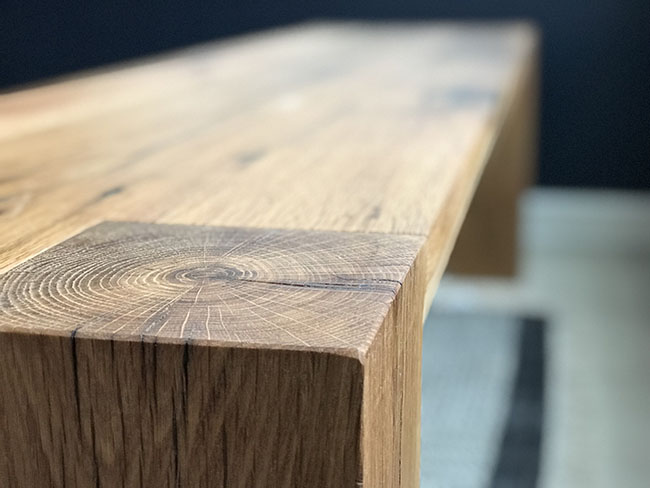
I stumbled across this gorgeous build of our Provence Beam Dining Table and outdoor space from Anu at Nalle's House and couldn't wait to share it with you guys! I love the mix of style, material and texture here, this is a space I could absolutely envision as my own. Don't you guys adore this? Love! 

To read about her build and the other details of her space, click here.

If you have built from our plans and you would like to be featured in a showcase post, please register as a member and post away or send me an email with photos and I can help you out! We adore seeing what your building! Xx... Rayan

To Read More About This Build, Visit This Blog Post: 
Summer Patio Dining Area
Project Image
Project Details

Free DIY Furniture Plans to Build an Original Office Small Hutch! Easy to build and big on storage goodness... to see the other pieces in this huge and fabulous collection, click here!

Estimated Cost

$50-$75

Dimensions
Dimensions for This Project
Tools
  • Tape Measure
  • Saw – Jig, Circular, or Miter
  • Drill
  • Countersink Bit for Drill
  • Square
  • Sander
  • Kreg Jig
  • Brad nailer
Lumber
  • 2 – 1x2 at 8’
  • 1 full sheet of ¾” plywood
  • 1 half sheet of ¾” plywood
Materials
  • 1-1/4” pocket hole screws
  • 1-1/4” screws
  • 1-1/4” brad nails
  • Edge banding for the plywood edges, optional
  • Wood filler
  • Sandpaper
  • Wood glue
  • Finishing Supplies
Cut List
  •  2 – 1x2 at 11-1/4” – Feet
  • 2 – ¾” plywood at 11-1/4” x 43-1/2” – Sides
  • 1 – ¾” plywood at 11-1/4” x 44-1/2” - Bottom
  • 1 – ¾” plywood at 40-3/4” x 44-1/2” – Back
  • 1 – 1x2 at 44-1/2” – Stretcher
  • 2 – ¾” plywood at 10-1/2” x 44-1/2” – Shelves
  • 1 – ¾” plywood at 12-1/4” x 48” – Top
  • 2 – 1x2 at 11-1/4” – Side Trim
  • 1 – 1x2 at 47-1/2” – Front Trim
Instructions

Before beginning to build, always check in on my site to make sure you have the most up to date set of plans, I occasionally update and change the plans to make the building process easier or to allow for less expensive purchasing of materials! Read through the entire set of instructions and all comments before beginning this project. If you print out or save plans, be sure to check in on my site to be sure you have the most up to date set of plans, as I occasionally update things for ease of building or buying. If you are new to building, read through the GETTING STARTED section and other articles found under the BUILD tab in the menu on my site, it has valuable information about how to get started, tools and techniques. If you are unfamiliar with the finishing process, visit my Finishing school for some tips and tricks for painting like a pro and for special finishing practices. Use glue to secure your joints and Consider Painting or Staining individual sections prior to assembling. This makes the paint application virtually flawless. Coat with a spray on Poly or Wipe on Poly to protect your finish and your piece and it will last for ages. Adhere to all safety standards and guidelines, and be sure you follow safety protocol throughout your build. If you are unsure about whether you are building safely, run a quick online search for the tool or technique you are using, or contact me via email or post to the forum before you move ahead. My contact info can be found in the menu of my site.

Step 1

If using edge banding, it will be applied to the exposed edges of the plywood before assembly.

Cut the pieces for the sides and feet. Set the Kreg jig for ¾” material and drill pocket holes in the top edge of each side. Attach the feet to the bottom using glue and countersunk 1-1/4” screws. The side pieces will be positioned at the center of each foot.

Step 1
Step 2

Cut the piece for the bottom and drill pocket holes in each end. Position as shown then secure using glue and 1-1/4” pocket hole screws.

Step 2
Step 3

Cut the piece for the back and drill pocket holes in all four edges. Position as shown then secure using glue and 1-1/4” pocket hole screws.

Step 3
Step 4

Cut the pieces for the shelves and drill pocket holes in each end as well as one long edge. Position as shown then secure using glue and 1-1/4” pocket hole screws.

Step 4
Step 5

Cut the piece for the stretcher and drill pocket holes in each end. Position as shown then secure using glue and 1-1/4” pocket hole screws. The outside face of the stretcher will be flush with the outside edge of the sides.

Step 5
Step 6

Cut the piece for the top. The front and sides will overlap by 1”. Secure using glue and 1-1/4” pocket hole screws through the holes drilled in the sides and back.

Step 6
Step 7

Cut the pieces for the trim. Rout a decorative edge along one long edge of each piece if desired. Position the sides first and secure with glue and 1-1/4” brad nails, then attach the front in the same manner. A mitered corner will be used if routing a decorative edge. Adjust the length of the sides accordingly. Store-bought trim can also be used.

Step 7
Finishing Instructions

Fill any Screw, Nail or Pocket Holes, Sand and Finish as Desired. For Finishing Tips and Tricks visit my Finishing School

Disclaimer

**Disclaimer: Some rights reserved. Private use only. Feel Free to link to any of my plans so long as you provide an adequate link back to the appropriate post! Plans from this page are not to be used for commercial purposes or republished without the express written consent of Rayan Turner, The Design Confidential I hope to provide accurate plans, however, I cannot guarantee each plan for accuracy. Not every plan that I post has been built and tested, so you are building at your own risk. It is recommended that you have a clear understanding of how the project works before beginning any project. Please contact me if you find an error or inaccuracy so that I might fix it.

Project Image

March was a really hard month for me. I lost my grandma that month and on top of having a baby, a 5 year old who is a borderline Tasmanian Devil, moving to a new house, work, and the SNAP conference to prep for, things didn't go as planned and I never got around to taking the Bird's monthly photo. So of course I never got around to sharing them. Needless to say I'm still playing catchup for the last several months on things that have fallen by the wayside, but this is a priority and I shall be attempting to get the next several months edited and shared sometime this year (sarcastic, but not really, he might be 5 by the time I finish). 

To see the other photos in his series, click here

I love seeing his photos side by side. It's such an amazing gift (to myself) to see this photo collage as a non traditional growth chart of sorts...

Excuses aside, I think this baby bird gets cuter by the day and even though I'm not entirely in love with the set up for this photo shoot, I adore his cute little bashful smile and the look on his face after he pulled down a ribbon and decided to give it a taste. Cutest bird in the West. Adore this baby boy, he is growing too fast.

Syndicate content